How to Redact a PDF
Redacting a PDF the right way means the hidden information is gone, not just covered up. This guide shows you how to do it so the text cannot be copied or recovered, and how to detect and redact PII automatically across a whole document.
The short answer
To redact a PDF properly, you must permanently remove the underlying text, not just cover it with a black box or highlight. Open the PDF in a true redaction tool, mark or detect the sensitive information, apply the redaction so the content is deleted, scrub the document metadata, and save a new copy.
A black box is not redaction
The most common redaction mistake is also the most dangerous. People draw a black rectangle, add a highlight, or paste a shape over sensitive text and assume it is gone. It is not. The text is still in the file, sitting underneath the box. Anyone can copy it, search for it, or pull it out with free tools. Courts, agencies, and law firms have all leaked Social Security numbers, witness names, and settlement figures exactly this way.
Real redaction removes the content itself. After a proper redaction, there is nothing under the black bar to recover. Two things separate true redaction from a cover-up:
- • The text is deleted, not hidden. The underlying characters are stripped from the document, so copy and paste returns nothing.
- • The hidden data goes too. Author names, edit history, and embedded layers can expose what you tried to remove. Proper redaction scrubs that metadata.
One quick test: after you redact, try to select and copy the text under the bar. If anything comes out, it was never redacted.
Redact a PDF by hand
Most PDF editors include a true redaction tool. The steps are similar across tools, and the key is using the redaction feature, not the highlighter or drawing tools.
- 1.
Open the PDF in a tool that has a dedicated redaction feature. Look for a tool literally named Redact, not Highlight or a shape tool.
- 2.
Mark every piece of sensitive information. Many tools also let you search for a known pattern, such as an SSN or email format, and mark all matches.
- 3.
Apply the redaction so the tool deletes the underlying content. This step is what makes it permanent.
- 4.
Remove hidden data and metadata. This is often a separate Sanitize or Remove Hidden Information step.
- 5.
Save the result as a new file, then verify by trying to select text under each redaction.
The catch: you find and mark every instance yourself, one document at a time. For a single short PDF that is fine. For a stack of contracts, a box of scanned records, or a spreadsheet of account numbers, it gets slow and easy to miss something. That is the problem the next method solves. If you are weighing this against Acrobat specifically, see PII Anomalyzer vs Adobe Acrobat.
Detect and redact PII automatically
PII Anomalyzer finds the sensitive information for you, across the whole document or a batch of them, then redacts it permanently. Everything runs on your machine.
Choose which PII types to detect
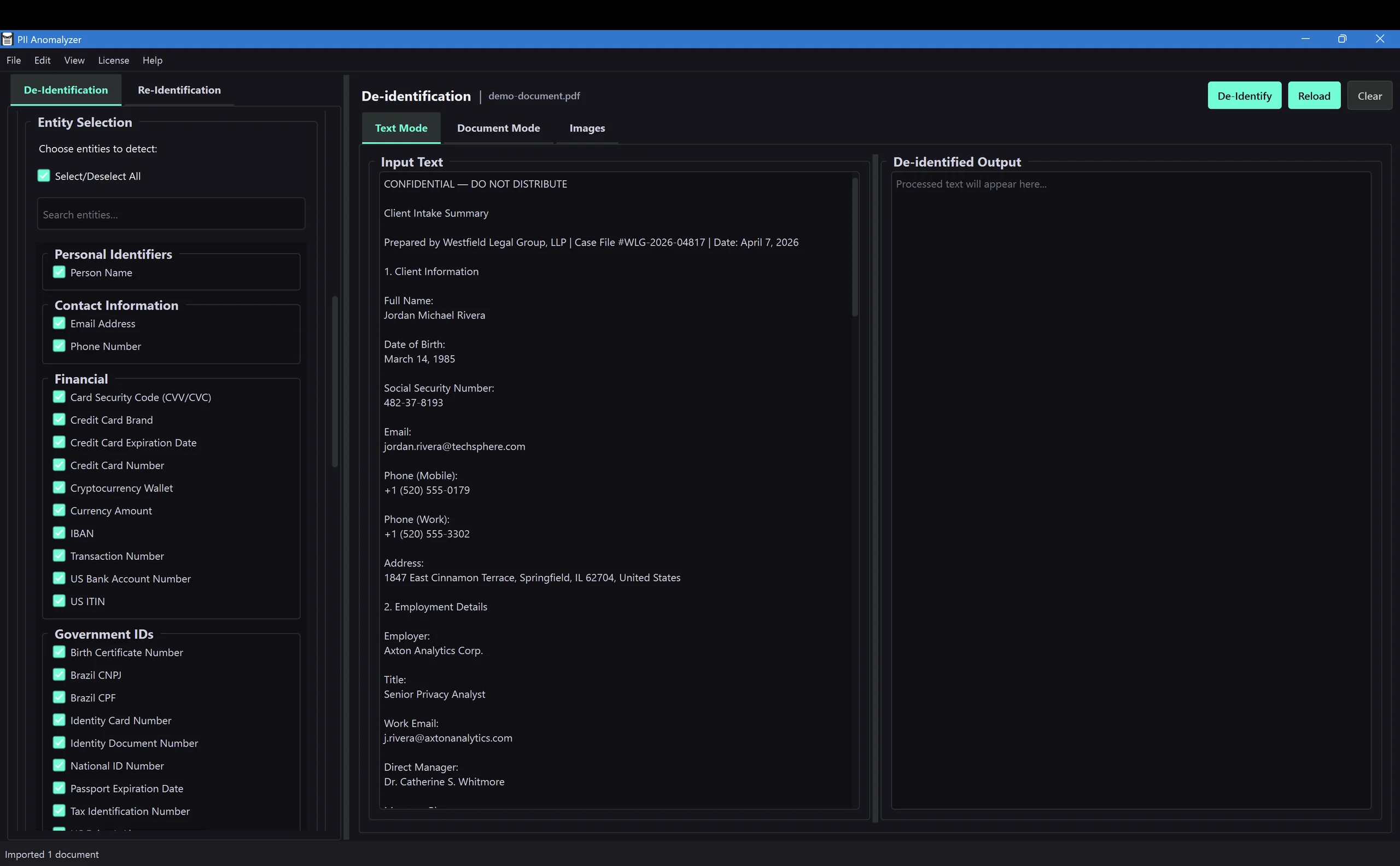
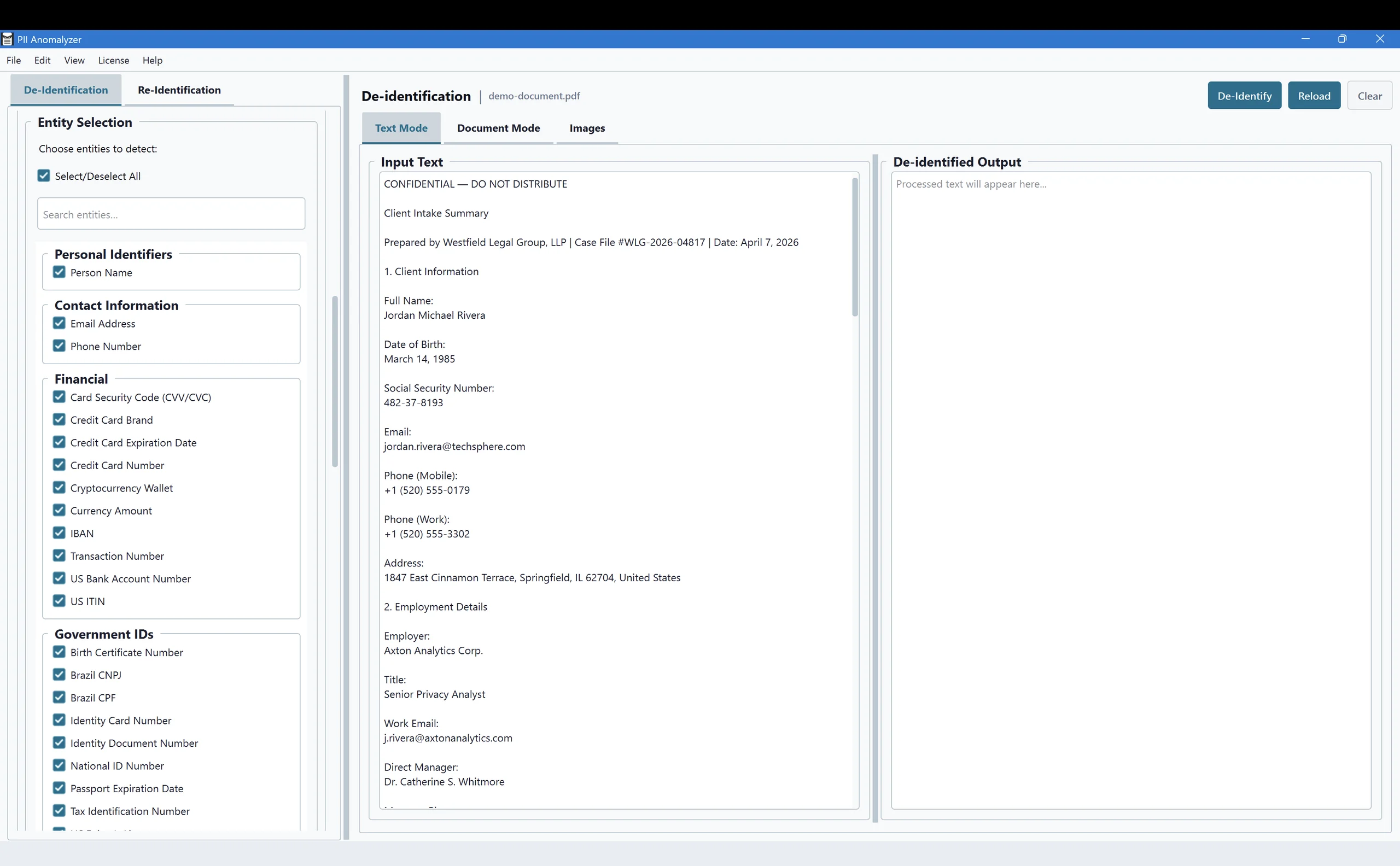
Before you import, decide what to look for. Open Entity Selection in the sidebar to control exactly what gets flagged. The supported PII types are grouped into categories, Personal Identifiers, Contact Information, Financial, Government IDs, and more, with a search box and a Select/Deselect All toggle. Narrow it to just what you need, like Social Security numbers and financial details, or detect the full set. This step is optional.
Open your document
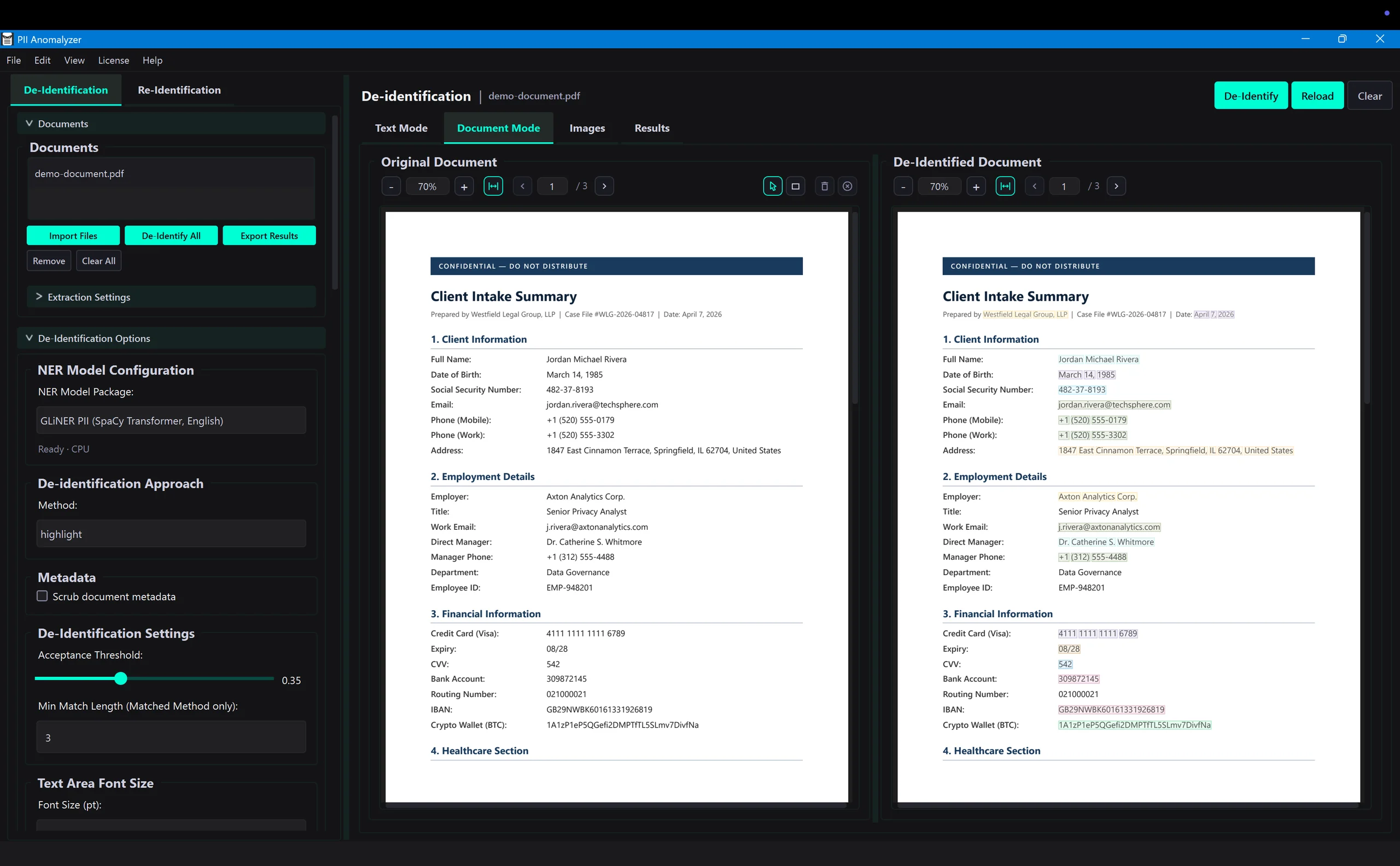
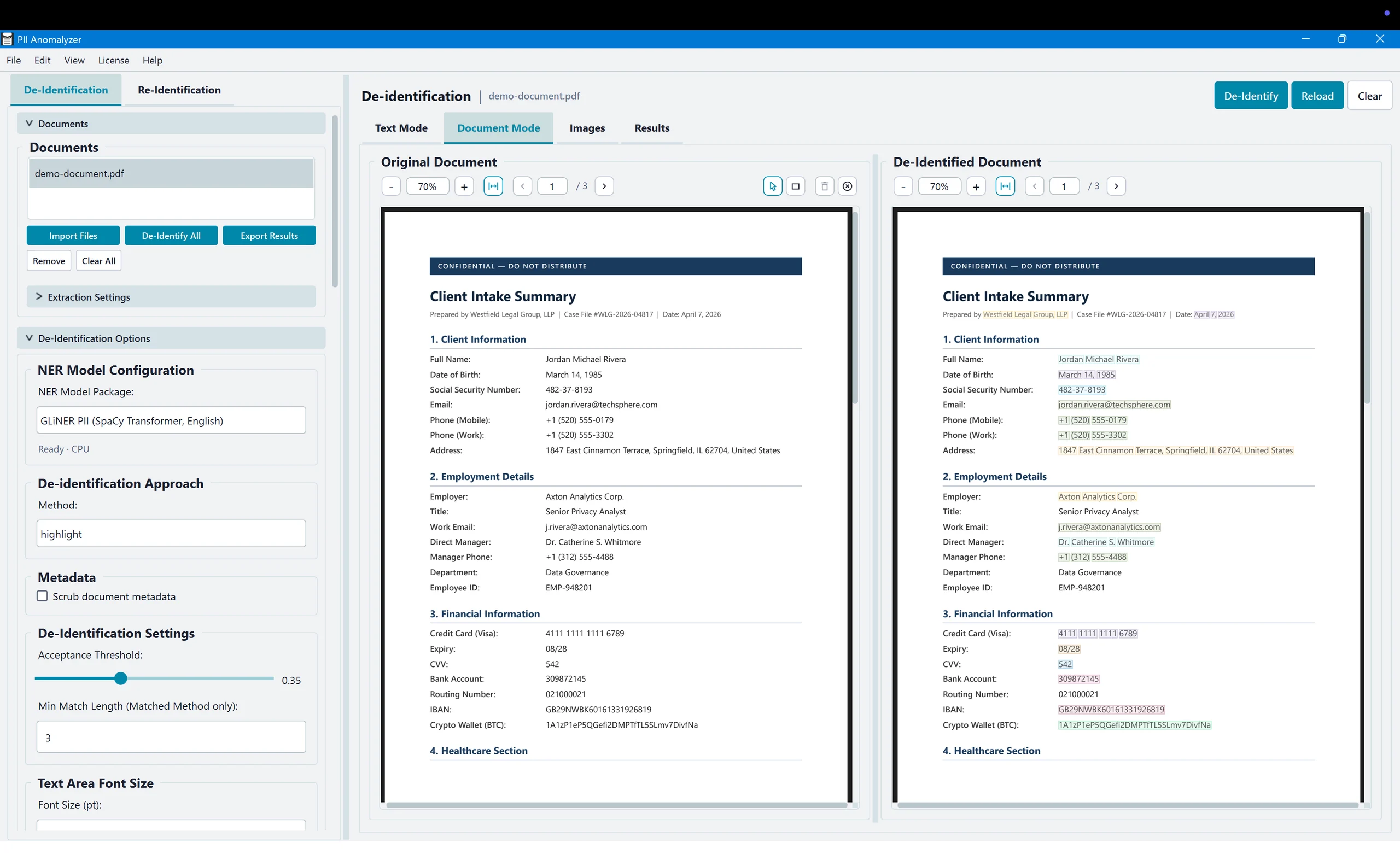
Click Import Files and choose a PDF. You can also select Word and Excel files, which PII Anomalyzer converts to PDF on your machine before processing. Select several files at once to redact them as a batch.
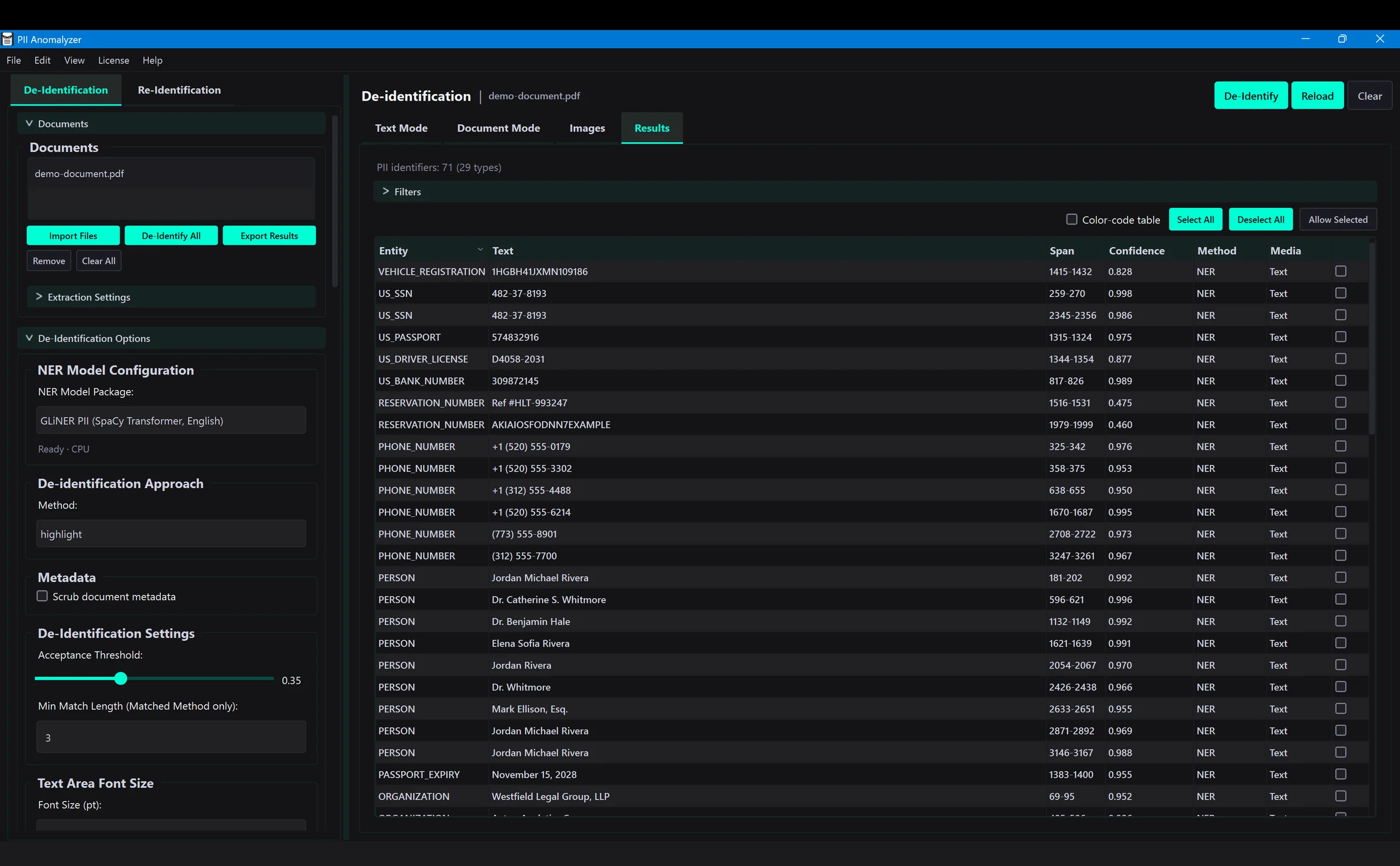
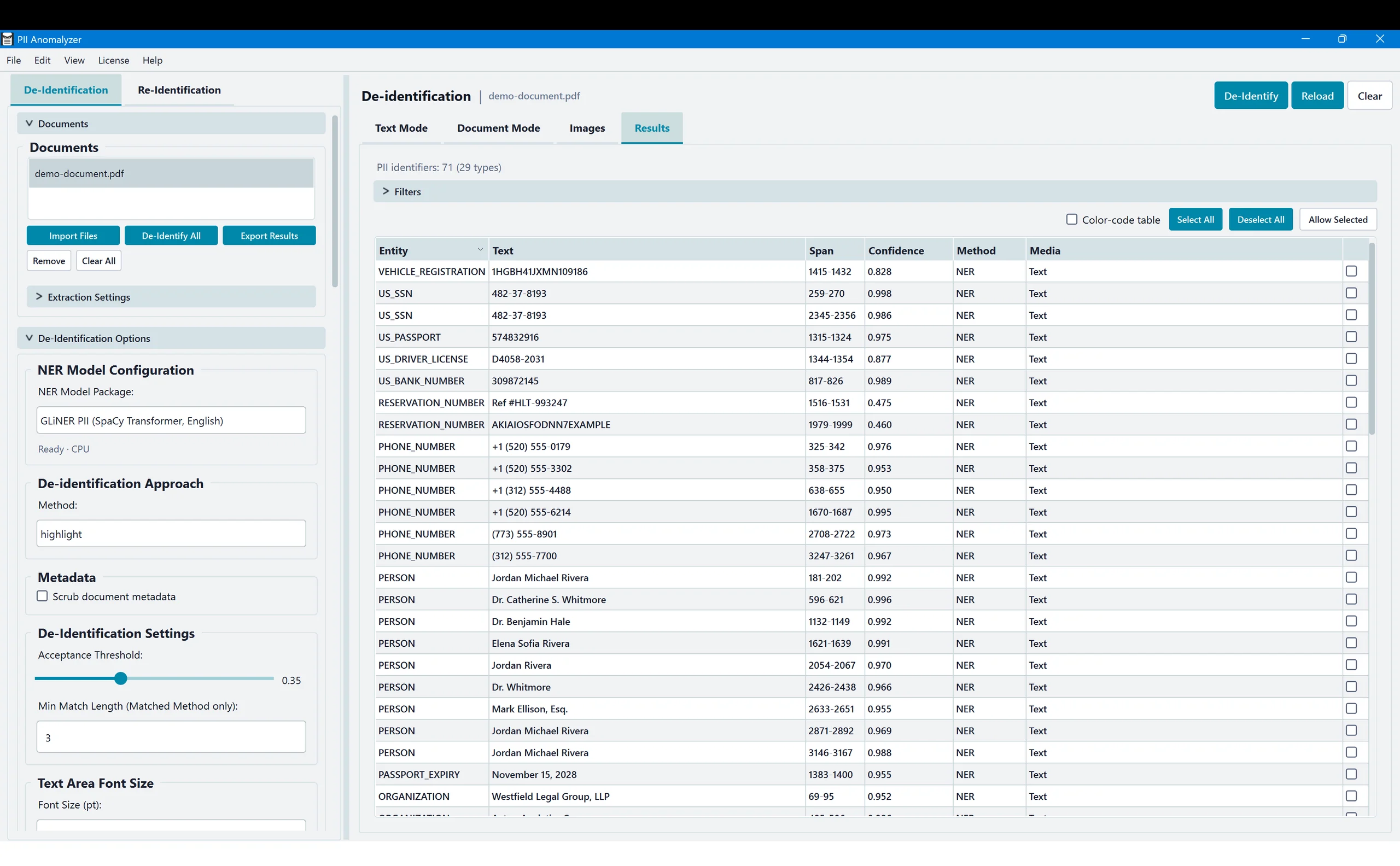
Run detection, then review every hit
Choose the Redact method and click De-Identify (or De-Identify All for a batch). The local AI scans the document and lists every piece of PII it finds, scored and categorized, so you can confirm what will be removed before you commit.
Black out what a scan cannot read
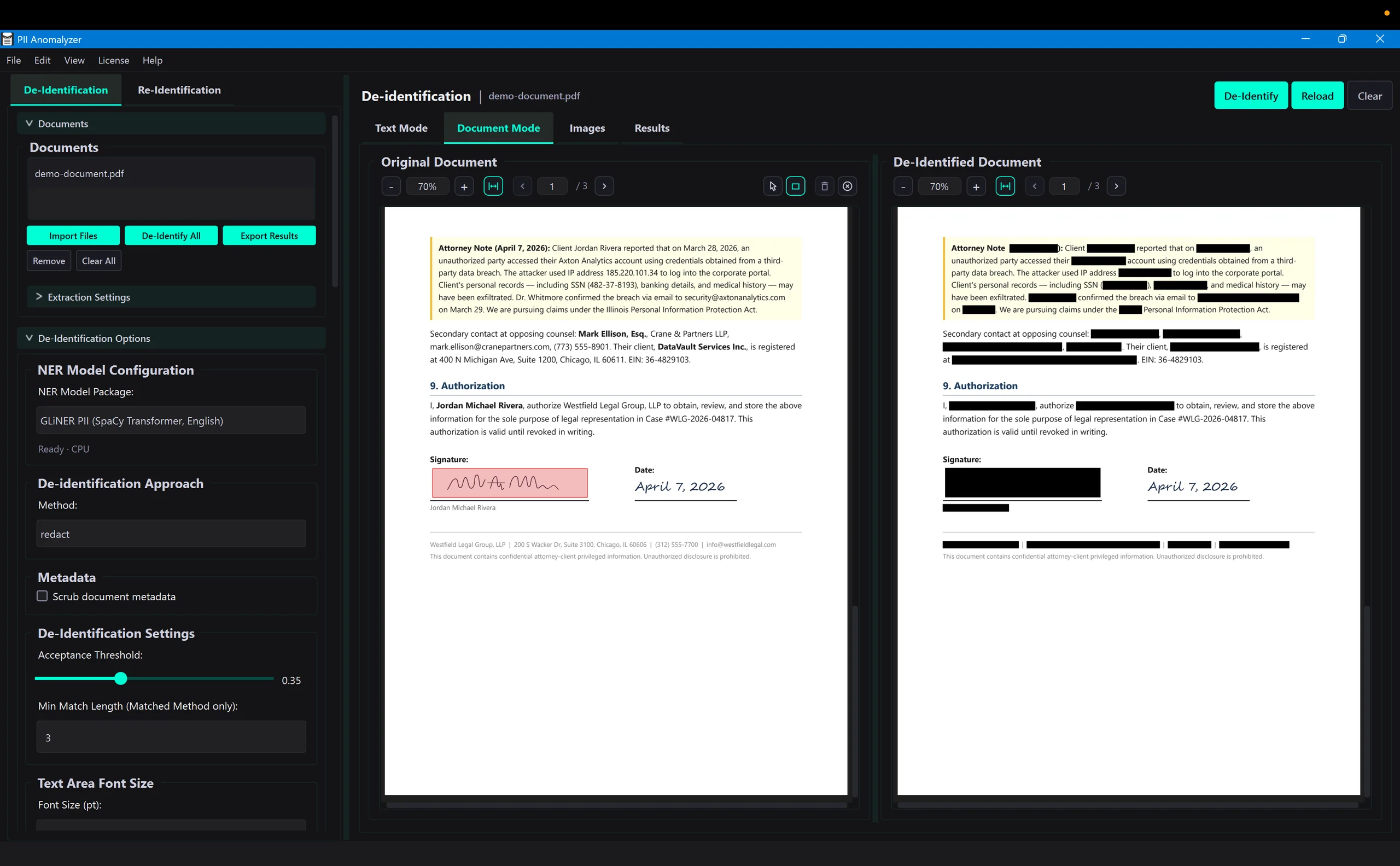
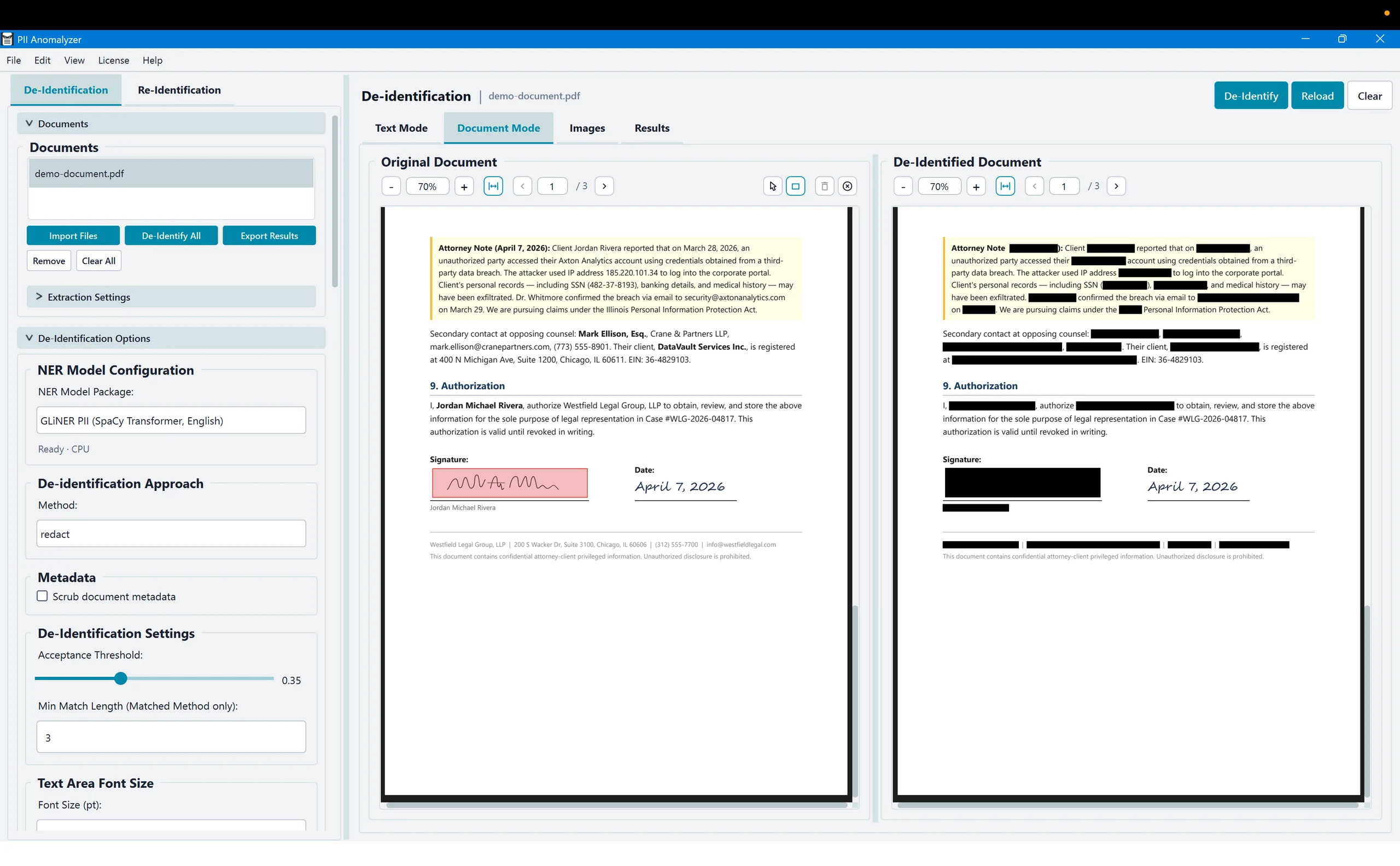
Signatures, handwriting, stamps, and logos are visual, not textual, so automated detection can miss them. Draw a redaction box directly over those areas. Manual boxes become solid black bars in the redacted output, the same as detected text.
Save a clean, redacted copy
Click Export Results and save the redacted PDF. The underlying text is permanently removed, not just hidden. Leave Remove hidden data switched on in the sidebar (it is on by default) to also wipe hidden fields like author, title, and the XMP stream from the exported PDF. Your original file is left untouched.
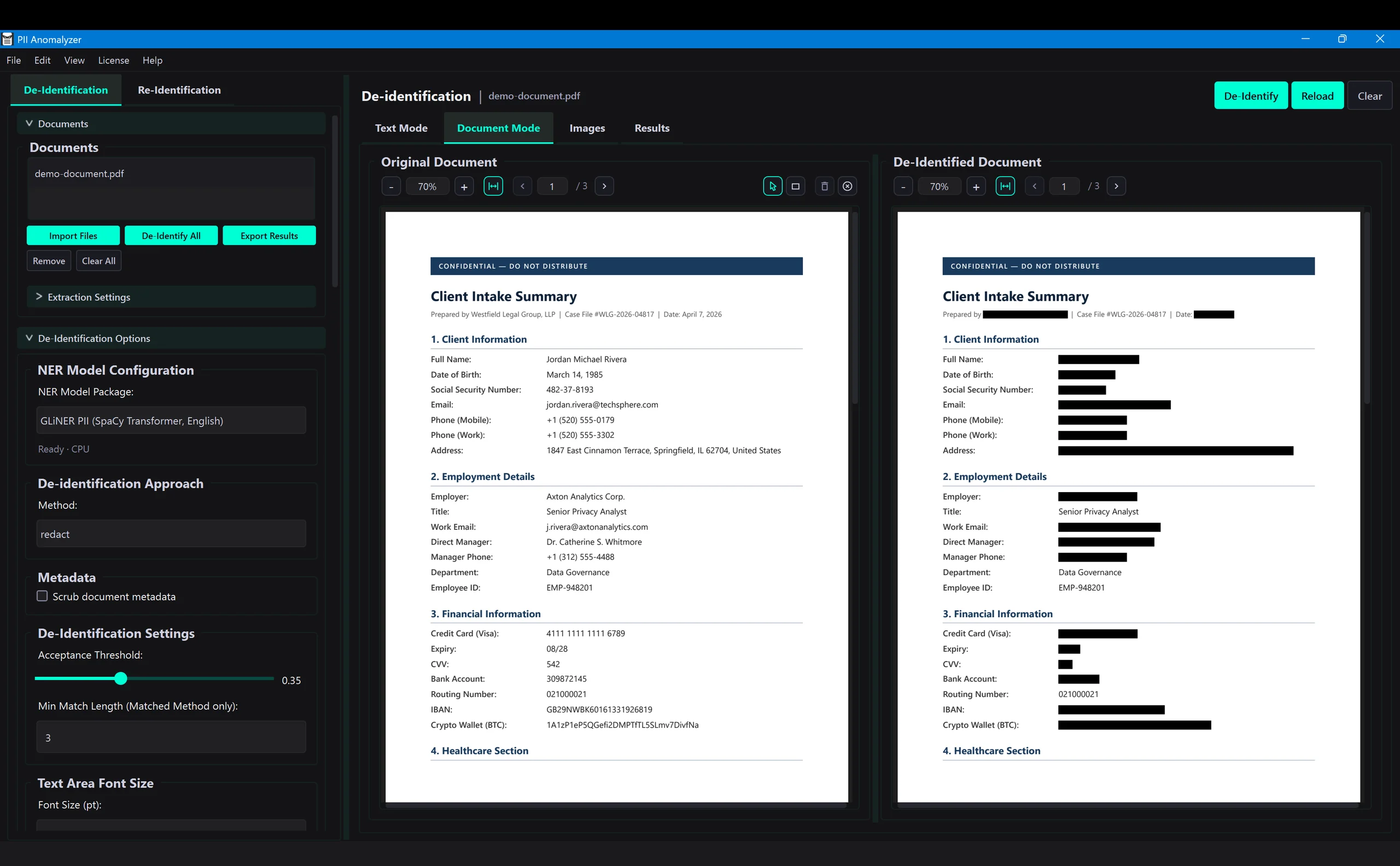
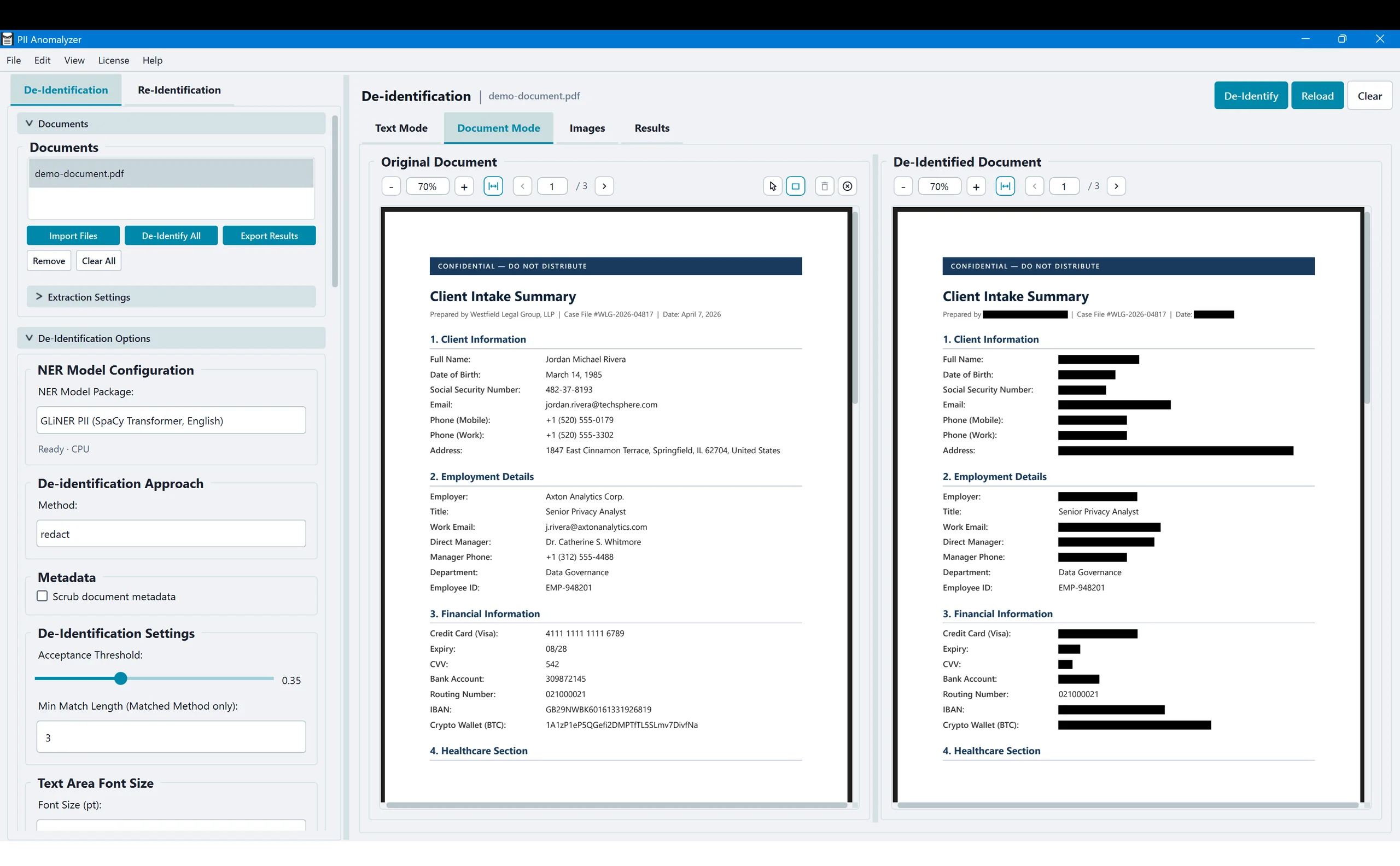
Watch the full walkthrough on the product tour, or see everything the app detects on the features page.
Four ways to de-identify a PDF
Redaction is one option. Sometimes you want to anonymize instead, keeping the document readable while removing the identity. PII Anomalyzer offers four methods.
| Method | What it does | Recoverable? |
|---|---|---|
| Redact | Permanently deletes the text and covers it with a solid black box. | No |
| Mask | Removes the text and replaces every character with a symbol like *, keeping the original length. | No |
| Replace | Swaps each entity for a labeled placeholder such as «PER1», with an optional legend page. Supports a controlled re-identification workflow for sending content to an AI tool, contractor, or outside reviewer and translating it back. | By an authorized reviewer |
| Highlight | Marks PII with a colored overlay and leaves the text in place. Use it to review before you commit to a permanent method. | Yes (review only) |
Redact and Mask are permanent. Replace supports a re-identification workflow for cases where you need to share a de-identified document with an AI tool, contractor, or reviewer and then translate the results back. Highlight is for review only and leaves the original text in place.
Redaction checklist
A quick pass before any redacted PDF leaves your hands.
- Use a true redaction tool, never the highlighter or a drawing shape.
- Confirm the underlying text is deleted by trying to copy it under each bar.
- Remove document metadata and any hidden data.
- Check headers, footers, footnotes, and form fields, not just the body.
- For scanned pages, make sure the text was read before you trust automated detection.
- Save a new copy and keep the original separate.
Common questions about redacting PDFs
Does putting a black box over text in a PDF actually redact it?
No. Drawing a black box, shape, or highlight over text only hides it visually. The underlying text is still in the file and can be copied, searched, or recovered. True redaction permanently removes the text and any hidden data behind it, and you save the result as a new copy of the document.
How do I redact a PDF without Adobe Acrobat?
Use any tool with a true redaction feature, not just a markup or highlight tool. PII Anomalyzer redacts PDFs, and Word and Excel files that it converts to PDF, on your own machine. It uses AI to detect the sensitive information automatically, so you do not have to find every instance by hand.
How do I redact a PDF for free?
Several PDF tools include a manual redaction feature at no cost, where you mark each piece of sensitive information yourself. That works for a page or two but gets slow across many documents or many PII types. PII Anomalyzer automates the detection and offers a 7-day free trial.
Does redaction remove a PDF's metadata?
It should, and it is a step people often forget. Hidden fields like author name, title, and the XMP stream can leak information even after the visible text is redacted. PII Anomalyzer includes a Remove hidden data option that wipes those fields from the exported PDF. It is on by default, so leave it on before you export. Word and Excel files are converted to PDF first, so the same option clears the metadata on their exported PDF too.
Can I redact a Word document or Excel spreadsheet?
Yes. PII Anomalyzer accepts Word and Excel files, converts them to PDF on your machine, detects the PII, and gives you a redacted PDF. The output is a PDF, not a Word or Excel file.
Are my documents uploaded to the cloud?
No. PII Anomalyzer runs entirely on your desktop. Your document content stays on your machine and is not sent to any cloud service for detection or redaction.
Redact your next PDF in minutes
Let the local AI find the PII, redact it permanently, and keep every document on your machine. Try it on your own files for 7 days.
7-day free trial · Windows & macOS · Runs entirely offline